

Pebb Speed-Wrist Speedometer for Pebble Smartwatch
Description
PebbSpeed is a totally awesome and convenient piece of technology. On top of that, with iOS 8 you can now run Pebble iOS companion apps in the background with no problems at all! What this means for you is that you can put your phone in your pocket when on the go and not have to worry about the speed limit. This handly little app handles the worry for you and buzzes your wrist when you go over the speed limit (set by you in the settings).
Firstly, download the iOS companion app, then follow the instructions below.
The iOS companion app can be downloaded here:
http://itunes.apple.com/us/app/pebb-speed-wrist-speedometer/id927266907?ls=1&mt=8
Do you have a problem speeding in school zones? How about while in a rush driving somewhere for work? This app is also excellent for mechanics and people that own vehicles with broken speedometers. Give it a shot guys you won't be disappointed!
If you simply like our design and icon, you are welcome to use the analog speedometer in the iOS app.
INSTRUCTIONS:
1) Firstly, press "INSTALL WATCHFACE" on the main screen. This will take you to the Pebble Appstore so that you may download the Pebble app.
2) Secondly, press "CONNECT TO PEBBLE" on the main screen. This will connect you to the Pebble app.
3) If you wish to use the Speed Limit Alert system, press "SETTINGS" on the main screen. This will take you to the settings screen. Here you can change units from km to miles or vice versa. You can also turn the speed limit function on by pressing "Speed Limit Alert."
Set your preferred speed for the speed limit alert vibration function in the "SET SPEED LIMIT" button (be sure you selected km or miles before inputting this value).
4) After you have conducted 1-3 you are good to drive to your destination care free! After you start driving to your destination, you will find it very difficult to speed with this speed limit alert system!
Note: Continued use of GPS running in the background can dramatically decrease battery life.
Built-in battery saving techniques:
- This app must use GPS to track speeds. The phone GPS will not shut off unless you press “Disconnect from Pebble”
- Another way to save on the battery is to not press “PREVENT IPHONE FROM SLEEPING."
If the light is red on this button then the “PREVENT IPHONE FROM SLEEPING” function is not turned on.
If this function is turned on it will drain more battery power.
PebbDrive-GPS, Speedometer, Navigation, and Speed Limit Alert for Pebble Smartwatch
Description
Here is what people are saying about PebbDrive:
“This thing has saved me from so many speeding tickets!”
“Whoa! It’s just like a Sci Fi movie!”
“It’s great for bike rides!”
“The speedometer on my car is broke, this thing is a life saver!”
“I love using it when I drive, I don’t need to look at my phone!”
You can download the companion app here, the app will only work if the companion app is downloaded:
http://itunes.apple.com/us/app/pebbdrive-gps-speedometer/id859215264?ls=1&mt=8
Use the speed limit alert, see a mini map and get turn-by-turn directions on your Pebble!
We took a no nonsense approach in developing this app for you to use on your Pebble. It’s a slick set up and easy to use.
Here is how you can start using PebbDrive:
START BY INSTALLING WATCHFACE
Start using the app by opening the app on your phone.
Press “INSTALL WATCHFACE” on the MAIN SCREEN.
(If you already installed the Pebble app from the Pebble App Store this step is unnecessary)
Then press, “Connect to Pebble” on the MAIN SCREEN.
Once you see the green light you are ready to go!
SPEED LIMIT ALERT
Note: Before using the app make sure your device is connected to Pebble via Bluetooth before inputting directions.
To start using the speed limit alert you have to do the following:
1) The app is set to use miles by default. If you want to change to kilometers go to the “UNITS” button in “SETTINGS.”
2) Next, set your desired speed limit setting by inputting the speed. Press “SETTINGS” on the MAIN SCREEN. On the SETTINGS screen you can input the speed on the “Set Speed Limit” button. For example if you set the UNITS button to use miles, and you put 55 in the Set Speed Limit button, when you go over 55mph your Pebble and iPhone will both vibrate and the numbers on the MAIN SCREEN of the iPhone app will turn red.
DIRECTIONS
Press “DIRECTIONS” on the MAIN SCREEN
After pressing “DIRECTIONS” on the MAIN SCREEN you will be taken to the DIRECTIONS screen. Input your directions.
After inputting DIRECTIONS return to the MAIN SCREEN.
You’re ready to go!
ZOOM FUNCTION
While app is operating you can use the ZOOM function on the Pebble app.
Press the middle button on the right to display the zoom function on Pebble.
Press the top right button to ZOOM + and the bottom right button to ZOOM -
To return to the map screen press the middle button again.
Press the top right or bottom right buttons on Pebble to see directions.
Press the same buttons, top right and bottom buttons, to return to the map screen on Pebble.
Note: Continued use of GPS running in the background can dramatically decrease battery life.
Built-in battery saving techniques:
- The phone GPS will not shut off unless you press “Disconnect from Pebble”
- Another way to save on the battery is to not press “PREVENT IPHONE FROM SLEEPING."
If the light is red on this button then the “PREVENT IPHONE FROM SLEEPING” function is not turned on.
If this function is turned on it will drain more battery power.

Metal Gear Solid Otacon
Description
Watch face featuring the Otacon sprite from Metal Gear Solid 2. Includes time, date, connection indicator, and battery indicator.


Flanders Field Poem
Description
This is the original Flanders Field poem reformed as a pebble watchapp especially for Remembrance Day and the Royal British Legion. Support the fallen! Use website link below!
It is a plain text, that supports scrolling!
Other Versions
Poppy- Remembrance Day

Description
Wear your virtual poppy! A watch poppy for your smartwatch! Support the fallen from WW1. Sponsored by the Royal British Legion. Remember to donate at website! Colours invert when Bluetooth is disconnected!
Other Versions



TextWatchMY
Description
A derivation of TextWatch in Bahasa Malaysia. Typeface size is reduced to cater few numbers in Bahasa Malaysia like "Sembilan" instead of "Nine".
Any comment and suggestion is much appreciated.
*Forked on GitHub at : http://github.com/wearewip/PebbleTextWatch
**Anda faham Bahasa Malaysia, dan reti bagaimana nak mengaturcara dalam C atau JS? Nah boleh fork terus dari sini : http://github.com/nurfaizfoat/PebbleTextWatch
V1.0.1
======
- Earliest version. Watchface crash when Pebble lost connection with mobile device.
- No menu image and no App Locker thumbnail.
- Font might be too small. Will looking for a more suitable size.

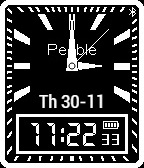
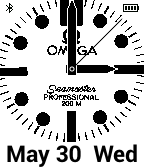
Omega BH1
Description
Omega style inspired face with month, date and day. Connection and battery indicator. (NB In no way associated or connected with Omega and its products).
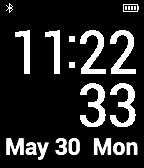
Digital Day Day Invert
Description
Simple digital month day date. Connection and battery indicator.
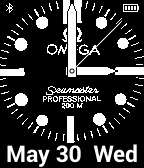
Omega BW
Description
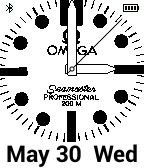
Omega style inspired face with month, date and day. Connection and battery indicator. (NB In no way associated or connected with Omega and its products).
Omega WH
Description
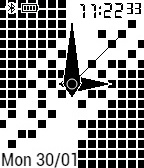
Omega style inspired face with month, date and day. Connection and battery indicator. (NB In no way associated or connected with Omega and its products).
BPM Detector
Description
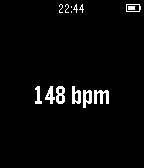
Simple BPM detector. Tap on the face or tap on the table with the hand the watch is on to get the beats per minute of your taps.
FitFace (Fitbit watchface)
Description
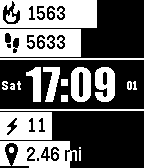
FitFace is a new Fitbit watchface for pebble!
It shows:
-Calories burned
-Active minutes
-Steps taken
-Distance
-Calories eaten
-Calories left
Has some cool animations, and features such as BT/battery status.
This watchface will be supported continuously, so if it breaks or the site breaks, I will be repairing it. Please email me if you experience issues.
Cadets Drum and Bugle Corps Watchface
Description
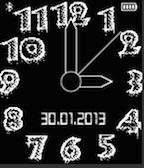
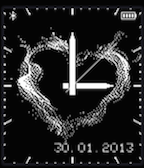
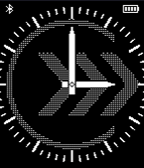
Watchface designed for Cadets fans and members
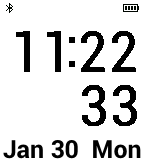
Dig day date
Description
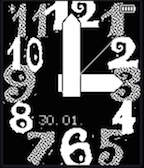
Simple digital face with month, date, day. With battery and connection indicator.
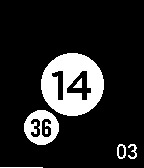
Revolving bubbles
Description
A bigger central circle showing the hours, a smaller circle showing minutes revolving around the hour circle. A battery bar in the bottom shows charge, date number shown in the lower right.
The bottom line shows battery charge percentage.
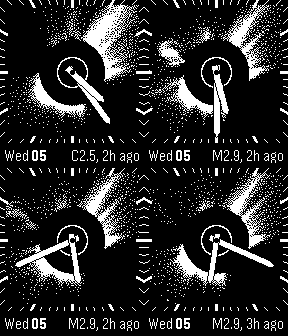
Sunshine
Description
Why settle for earthly weather when your watchface can display space weather!
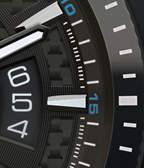
The sunshine analog watchface provides near real-time views of the Sun's corona (coronagraph), as imaged by the LASCO instrument on the SOHO (NASA & ESA) spacecraft [1].
Sunshine also lists the class and time of the most recent solar flare (bottom right).
1. http://sohowww.nascom.nasa.gov
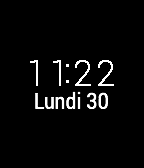

North Analog
Description
a compass watch that points always to the north.
By Pedrolane & Ron64.
You may need to face north to be able to read the time easily

B&R – BR 01 92 AIRBORNE
Description
This fearful watchface is apparently based on one particularly expensive swiss watches. Enjoy!
Generated by: http://www.watchface-generator.de
B&R – BR 01 92
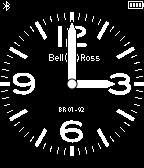
Description
Does this watchface resemble some very expensive swiss watches? Not a coincidence 🙂
Generated by: http://www.watchface-generator.de
Other Versions
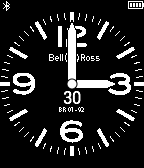
B&R – BR 01 92 (with date)
Description
Does this watchface resemble some very expensive swiss watches? Not a coincidence 🙂 This sub-version includes day number. Generated by: http://www.watchface-generator.de
Other Versions
GTA WATCHFACE
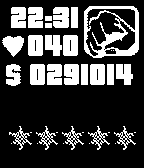
Description
Watchface in style gta:
Time - current time;
Health - pebble battery;
Money - current date;
Stars - current week day (from monday to friday) or bluetooth connection state (where 1 and 5 - double vibration).;
Status pebble battery charging.
+ "Settings" button, which configures display of information on the stars and status battery charging.

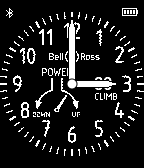
B&R – BR 01 CLIMB
Description
Not accidentally this watchface resembles one of the most beautiful and expensive watches any aviation enthusiast would love to have. So, here are them 😉
This watch face is compatible with Pabble SDK v2.0 only.
Generated by: http://www.watchface-generator.de
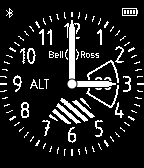
B&R – BR 01 ALTIMETER
Description
Not accidentally this watchface resembles one of the most beautiful and expensive watches any aviation enthusiast would love to have. So, here are them 😉
This watch face is compatible with Pabble SDK v2.0 only.
Generated by: http://www.watchface-generator.de
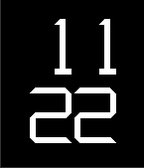
TheS
Description
It's clean and sharp digital watchface.
If you like it, you can donate to support: http://www.paypal.com/cgi-bin/webscr?cmd=_s-xclick&hosted_button_id=Q9ZYP5KQ8KU5U